Skip to content

Backoffice

Run the shop where you run the site

StoreCanvas adds the StoreCanvas section to the Umbraco backoffice: an Overview, Products, Orders, Customers, Offers, Emails and Settings. The products themselves are Umbraco content, edited in Content.

Browse the demo shop Buy a licence

The StoreCanvas section

What can you do in the StoreCanvas backoffice?

You run the whole shop there: follow sales, fulfil, ship and refund orders, run offers, write the shop's emails and choose its services. The screenshots show the demo shop, with fictional products and test orders.

Overview

Sales at a glance, and what's left to set up

Paid revenue, paid orders and the average order value for today, 7 or 30 days, and what needs your attention. The set-up checklist shows what's done and what's left: store details, payments, shipping, tax, terms, a first product and a test order.
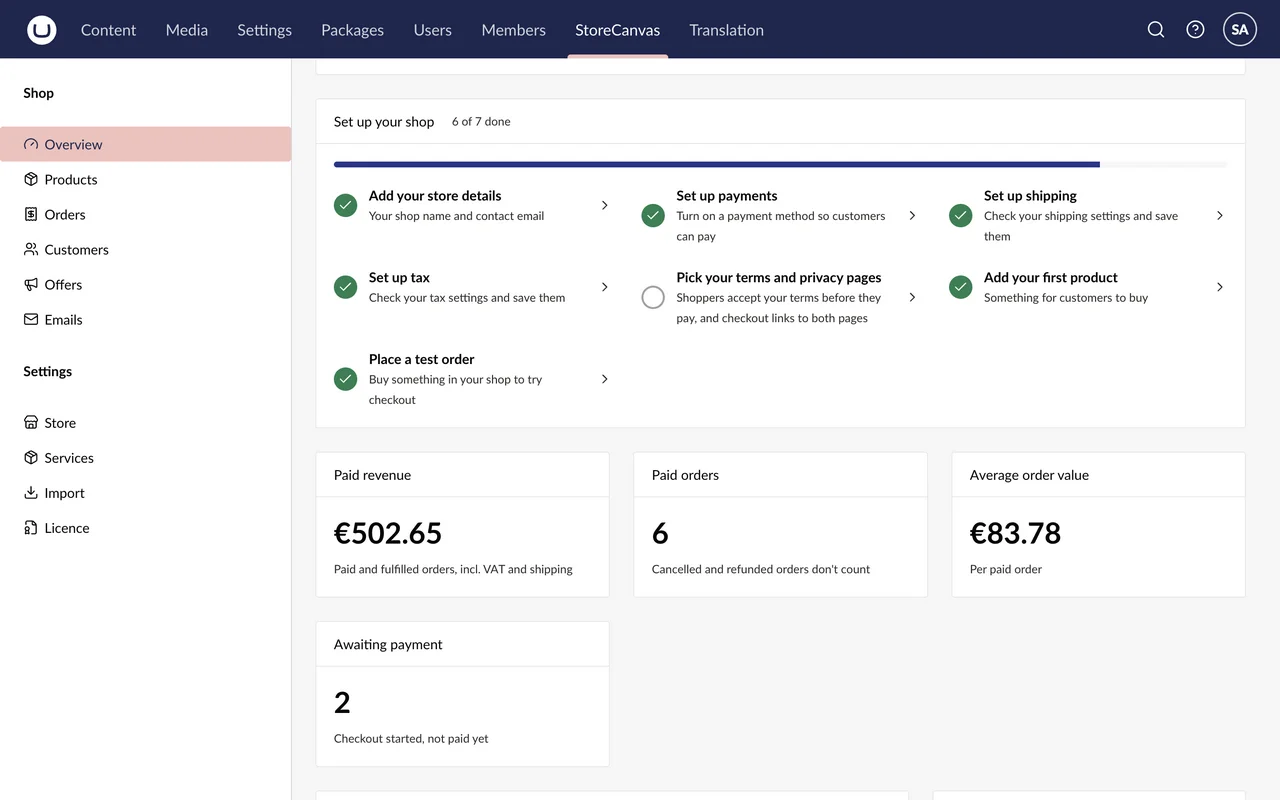
The StoreCanvas Overview in the Umbraco backoffice, with the shop's sales numbers and the Set up your shop checklist.

Products

Every product, with its stock

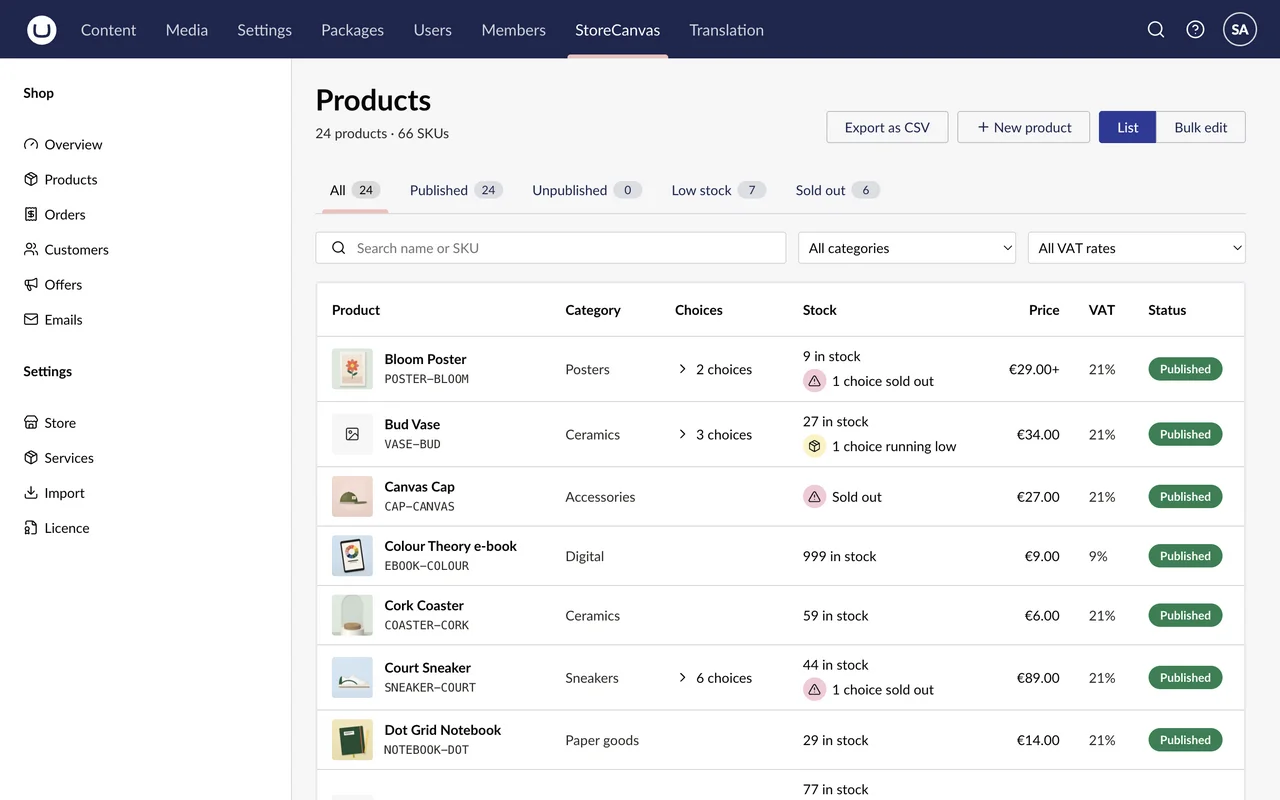
Search by name or SKU, filter by category or VAT rate, and see each product's choices, stock, price and status. Export as CSV, edit in a spreadsheet and import the file again.

The Products list in the StoreCanvas section: products with their choices, stock, price and status, and the Export as CSV button.

Content

Products are Umbraco content

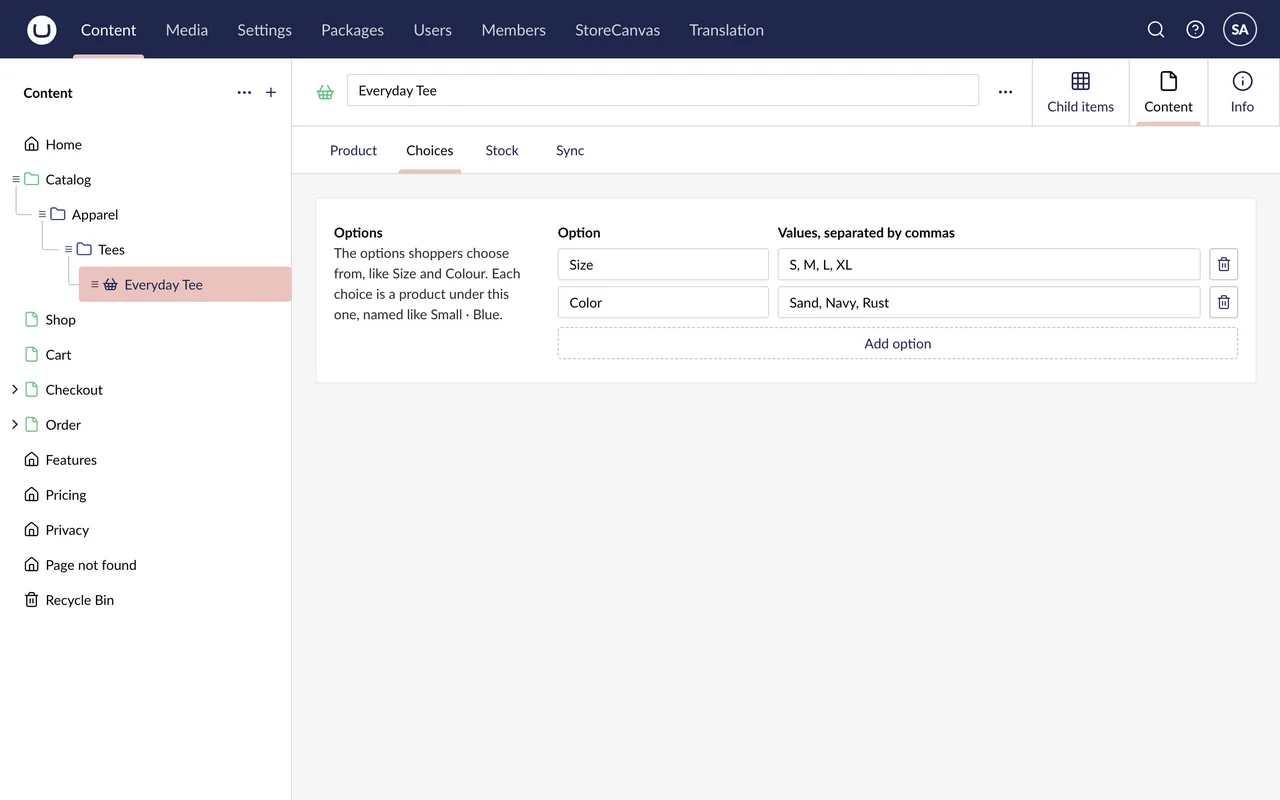
A product is edited in Content, like the rest of the site. Its Options, like Size and Color, make its Choices, each with its own SKU, price, stock and picture.

The Everyday Tee product in Umbraco's Content editor, on its Choices tab, with the options Size and Color.

Orders

Every order, by status

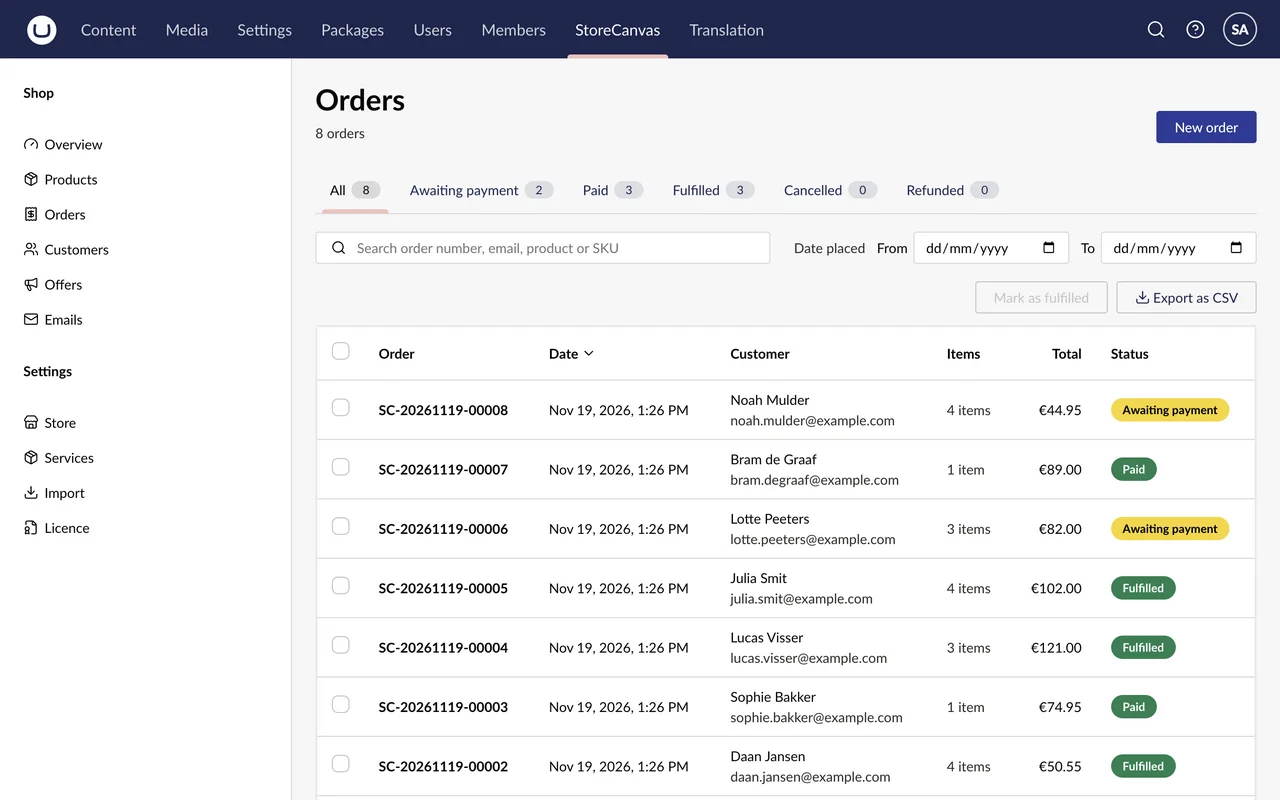
Search by order number, email, product or SKU, pick the dates, and mark several orders fulfilled at once. The list exports as CSV too.

The Orders list in the StoreCanvas section: orders with their number, date, customer, items, total and status.

One order

Fulfil, ship or refund

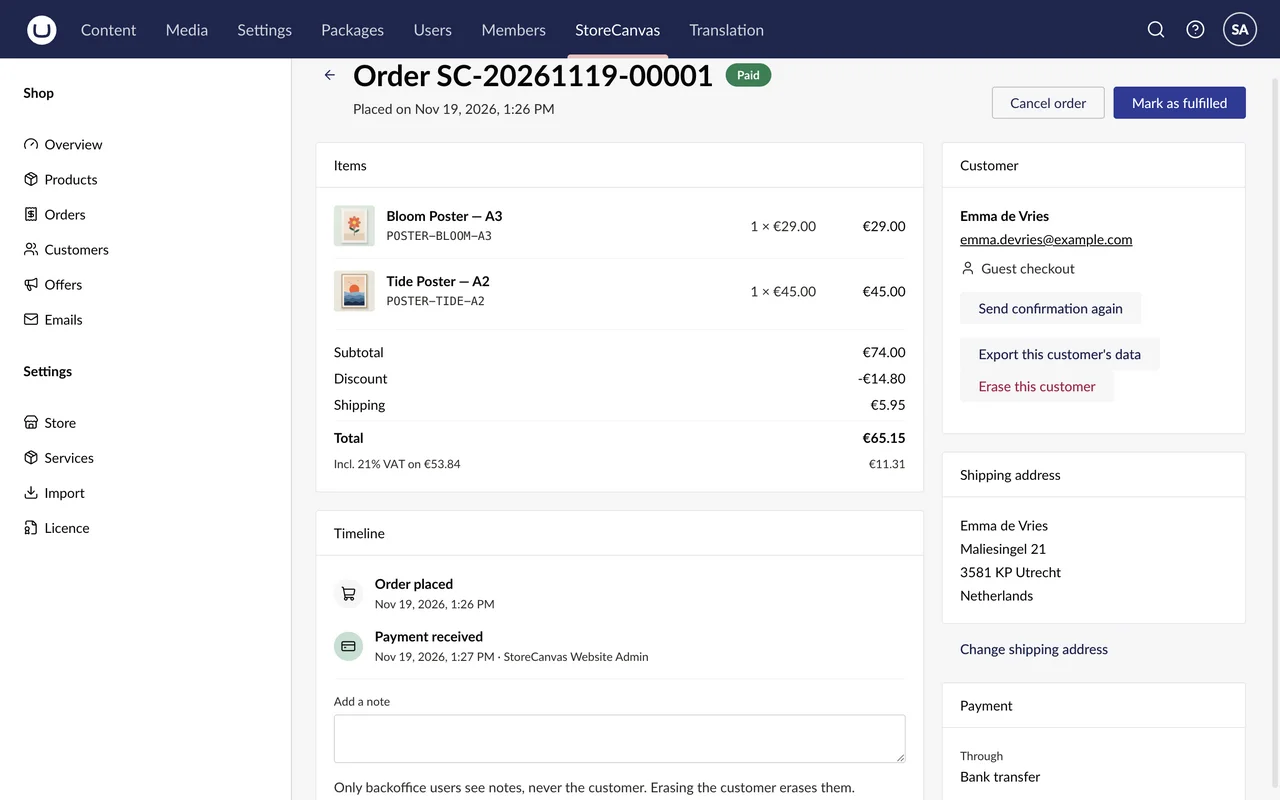
Mark the order fulfilled, buy its shipping label through Shippo, or refund it. Download its invoice and packing slip, follow its timeline, and add notes that only backoffice users see.

One paid order in the StoreCanvas section: its items, totals and timeline, the customer and shipping address, and the buttons Cancel order and Mark as fulfilled.

Customers

Who bought what

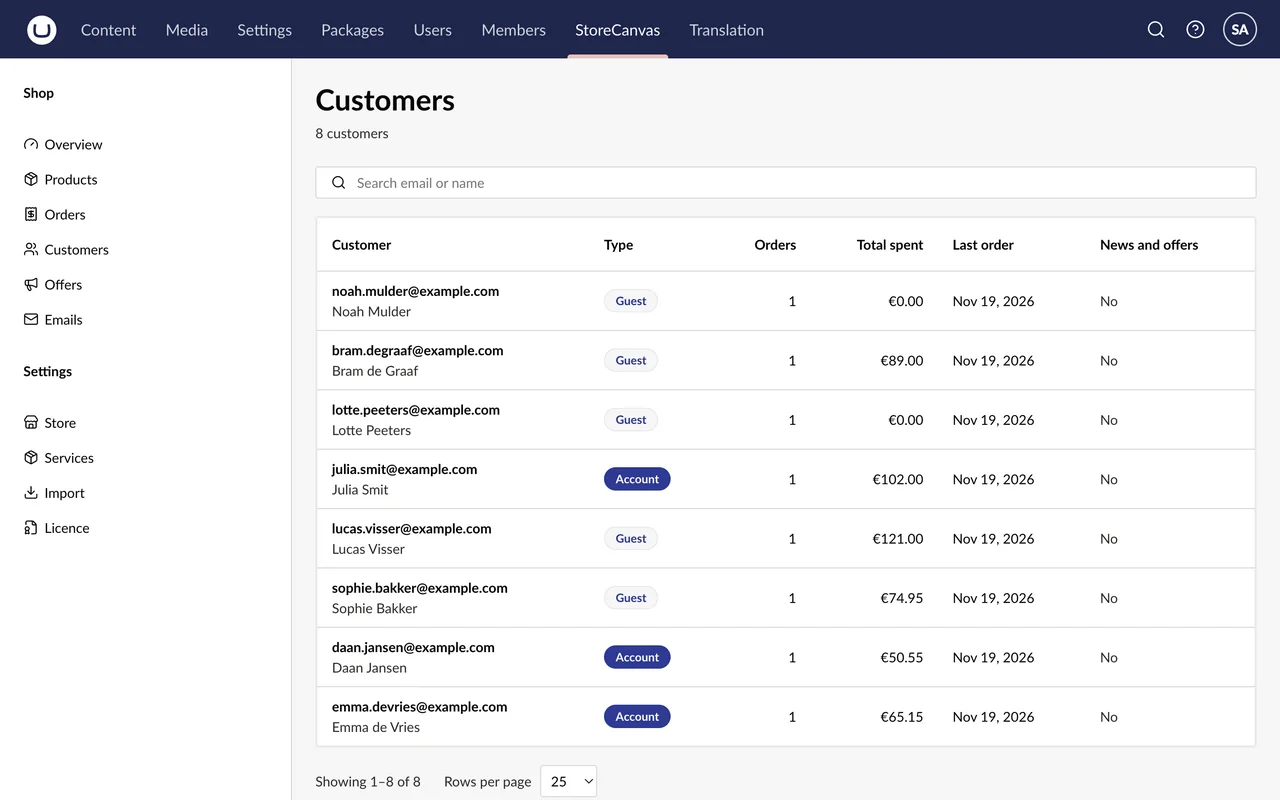
Accounts and guests, with their orders, total spent, last order and whether they want news and offers. From a customer's page you export their data, or erase it.

The Customers list in the StoreCanvas section: customers with their type, orders, total spent and last order.

Offers

Offers that apply themselves

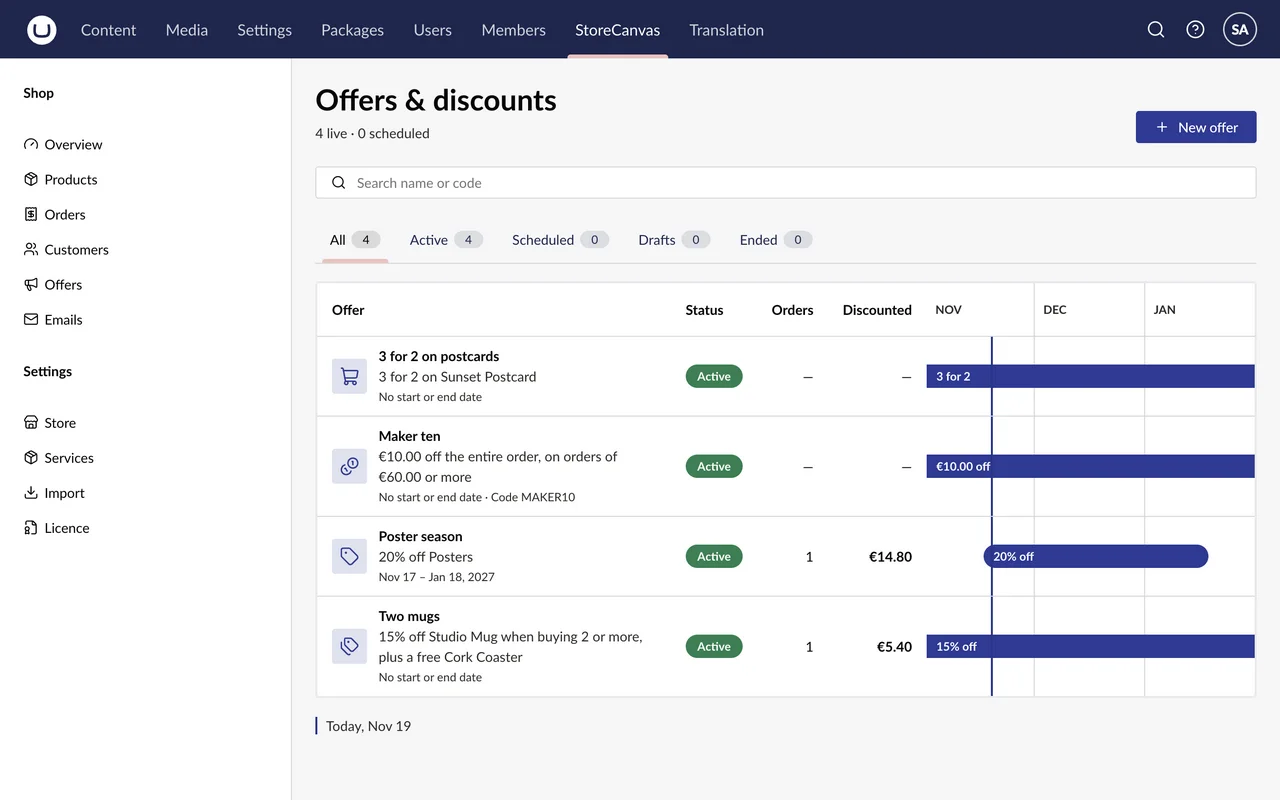
Percentage or amount off, 3 for 2, bundles, buy 2 or more, free gifts and codes. Each offer is active, scheduled, a draft or ended.

The Offers list in the StoreCanvas section: four active offers, each with its status, orders, discounted amount and a timeline.

Emails

The shop's emails, in your words

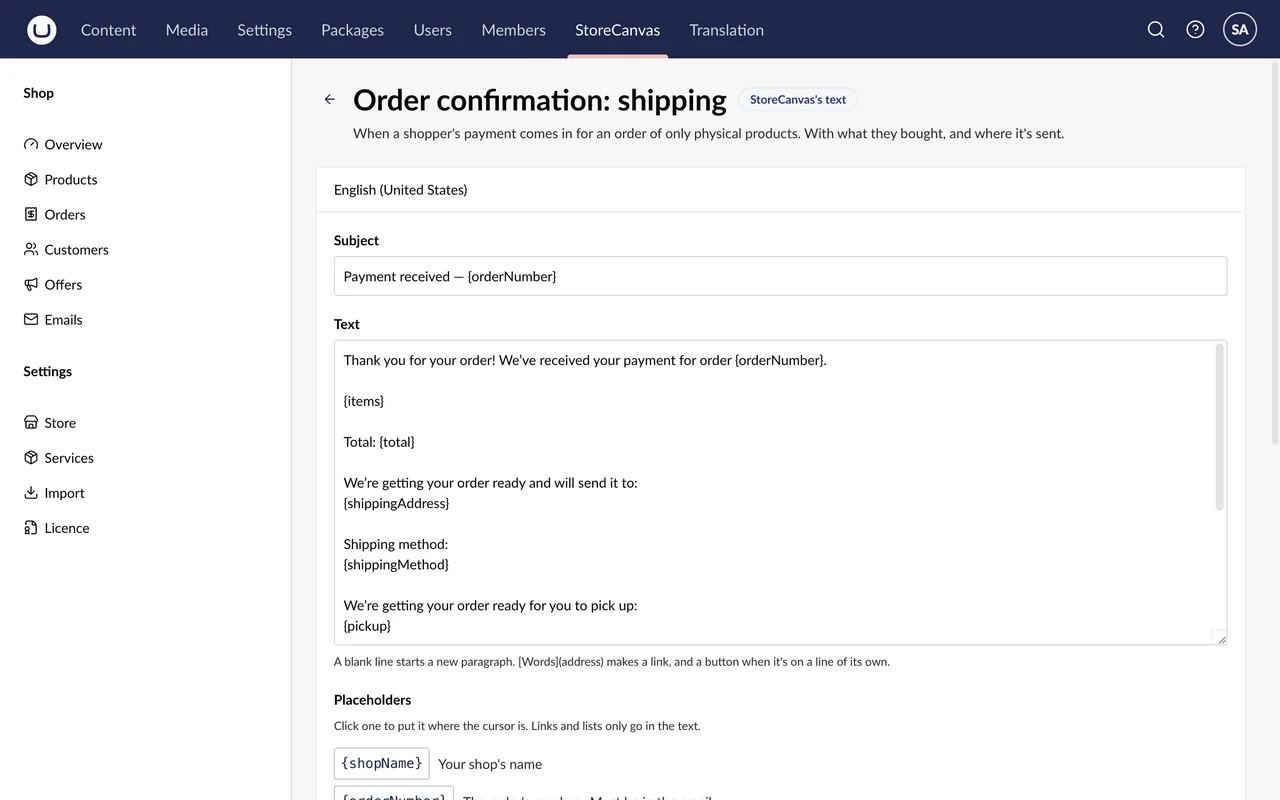
Every email the shop sends, to shoppers and to you. Write your own text in each of your languages, with placeholders, see a preview and send a test.

The shop's Order confirmation email in the StoreCanvas section, with its subject, text and placeholders.

Settings → Services

The shop's services

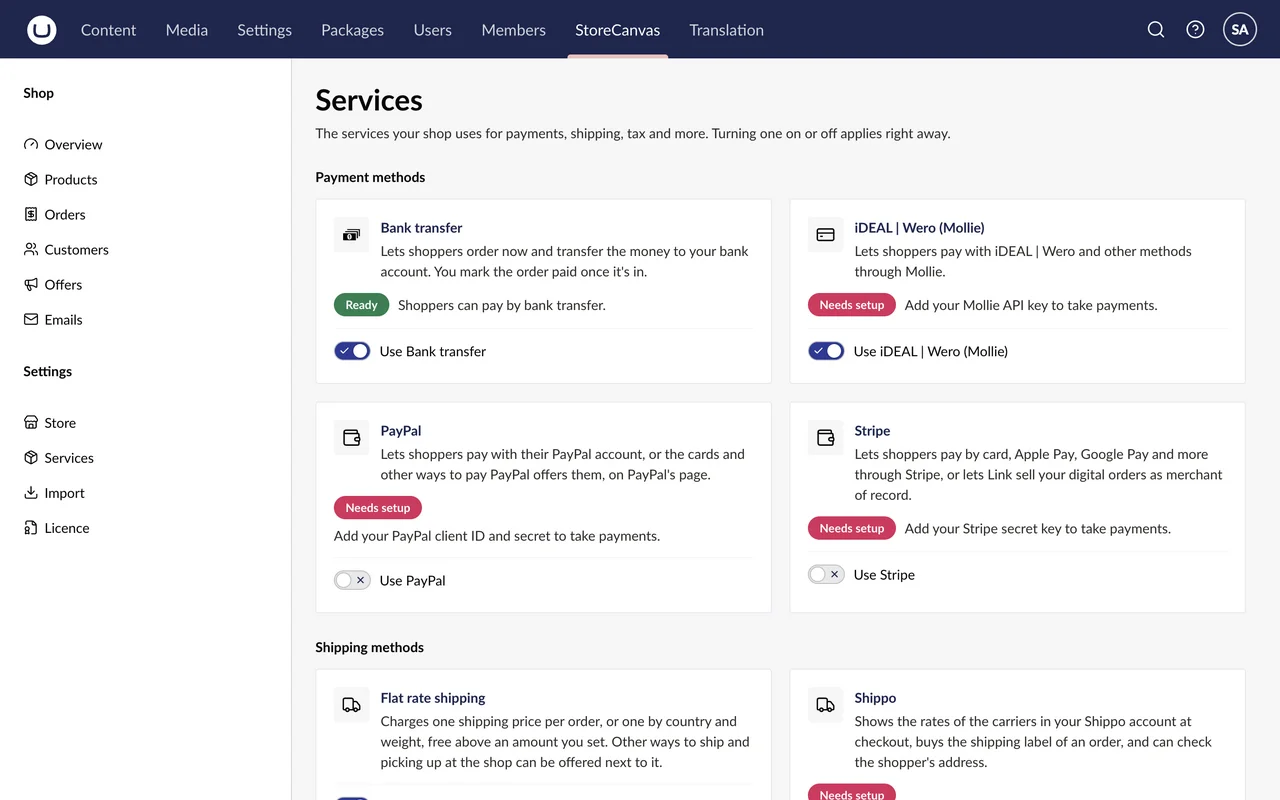
Payment, tax, shipping and print-on-demand providers, each Ready, in Test mode or Needs setup. Turning one on or off applies right away. The backoffice shows whether a secret is set, never the secret itself.

Settings → Services in the StoreCanvas section: the payment methods Bank transfer, Mollie, PayPal and Stripe, each with its status and switch, and the shipping methods below.

Run your shop in Umbraco

Every shop starts with a 14-day trial with everything working.

Browse the demo shop Buy a licence